
How to Connect Phone to Projector: Complete Step-by-Step Guide

Projectors are no longer limited to offices or classrooms. Today, they are widely used for home entertainment, presentations, gaming, and immersive visual experiences. With the rise of smartphones, many people now want to know how to connect their phone to a projector quickly and easily.
Whether you want to stream movies, display presentations, or showcase holographic visuals using a device like the 3D Holographic Projector HD, connecting your phone can unlock powerful capabilities.
In this comprehensive guide, we will explain multiple ways to connect Android and iPhone devices to projectors, including wired and wireless methods. By the end, you'll know exactly which method works best for your setup.
Why Connect Your Phone to a Projector?
Smartphones hold a huge amount of content — photos, videos, documents, games, and apps. Connecting your phone to a projector allows you to display this content on a much larger screen, creating a more engaging experience.
Here are a few common reasons people connect phones to projectors:
- Watching movies or streaming content
- Presenting slides or documents
- Sharing photos and videos
- Gaming on a bigger screen
- Displaying holographic visuals and 3D content
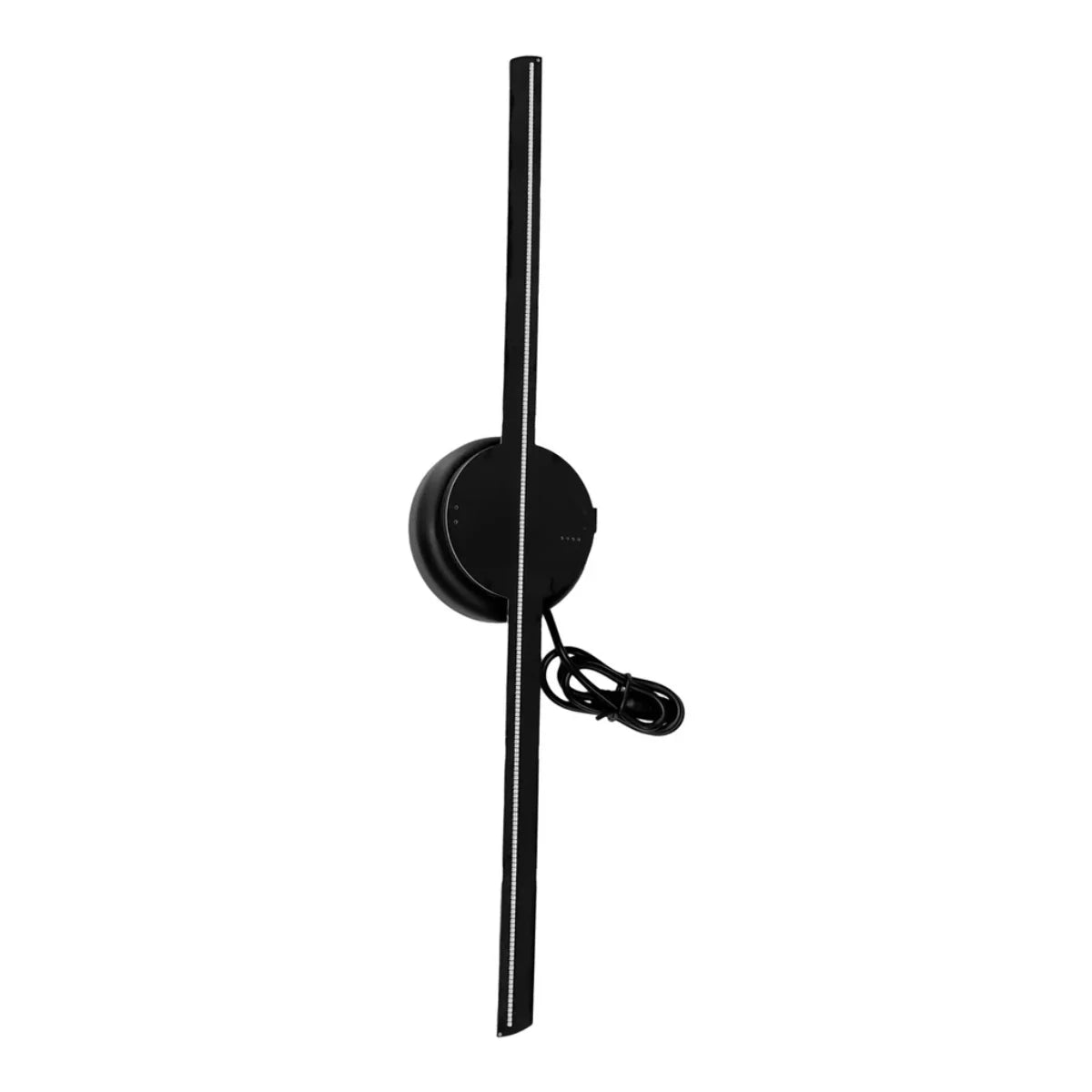
For example, advanced display devices like the 3D Holographic Projector HD allow users to project eye-catching holographic visuals that can be controlled directly from a smartphone.
Methods to Connect Phone to a Projector
There are several ways to connect your phone to a projector depending on the projector model and phone compatibility. The most common connection methods include:
- HDMI cable connection
- USB-C or Lightning adapters
- Wireless screen mirroring
- Streaming apps or casting devices
- WiFi direct connection
Let’s explore each method step-by-step.
1. Connect Phone to Projector Using HDMI Cable
The most reliable method to connect your phone to a projector is using an HDMI cable with the appropriate adapter.
Most modern projectors support HDMI input, which provides high-quality video and audio.
Steps to connect using HDMI:
- Check your phone’s port type (USB-C, Lightning, or Micro-USB).
- Get the correct HDMI adapter for your device.
- Connect the adapter to your phone.
- Plug the HDMI cable into the projector.
- Select the HDMI input source on the projector.
Once connected, your phone screen should appear instantly on the projector.
This method is stable, lag-free, and perfect for presentations or videos.
2. Connect Phone to Projector Wirelessly (Screen Mirroring)
Wireless screen mirroring is one of the most convenient ways to connect a phone to a projector.
Many modern projectors support:
- Miracast
- AirPlay
- Chromecast
- Built-in WiFi casting
Steps for wireless connection:
- Ensure your phone and projector are connected to the same WiFi network.
- Enable screen mirroring on the projector.
- Open the screen mirroring feature on your phone.
- Select the projector from the available devices.
Within seconds, your phone screen will appear on the projector.
This method works especially well for home entertainment and streaming.
3. Connect Android Phone to Projector via USB-C
Many newer Android phones support DisplayPort Alt Mode, allowing them to output video through USB-C.
Steps:
- Use a USB-C to HDMI adapter.
- Connect the adapter to your Android phone.
- Connect the HDMI cable from the adapter to the projector.
- Select the HDMI source.
Your phone screen will mirror automatically.
4. Connect iPhone to Projector
iPhones use the Lightning port, so you’ll need a Lightning to HDMI adapter.
Steps:
- Connect the Lightning adapter to your iPhone.
- Plug the HDMI cable into the adapter.
- Connect the other end to the projector.
- Select the HDMI input.
Alternatively, if the projector supports AirPlay, you can connect wirelessly through screen mirroring.
5. Use Streaming Devices for Easy Connection
Another option is using streaming devices like:
- Chromecast
- Fire TV Stick
- Apple TV
These devices plug into the projector’s HDMI port and allow you to cast content directly from your phone.
This approach is popular for streaming movies, YouTube videos, and apps.
Using a Phone with a 3D Hologram Projector
Advanced projectors designed for visual displays and marketing presentations often allow smartphone control.
For instance, the 3D Holographic Projector HD available on StellarNook can display stunning floating visuals and animations.
Users can upload or manage media files directly from their smartphone, making it ideal for:
- retail stores
- exhibitions
- events
- digital advertising
- home tech displays
Because holographic content often comes from mobile devices, learning how to connect your phone properly ensures the best performance and visual clarity.

Troubleshooting Phone-to-Projector Connection Issues
Sometimes connections fail due to simple technical issues. Here are a few quick fixes:
No signal detected
Make sure the correct input source is selected on the projector.
Wireless connection not appearing
Ensure both devices are on the same WiFi network.
Screen lag during wireless mirroring
Use a wired HDMI connection for smoother playback.
Adapter not working
Check that the adapter supports video output, not just charging.
Tips for the Best Projection Experience
To get the most out of your phone-projector setup:
- Use high-quality HDMI cables
- Keep your phone fully charged
- Ensure stable WiFi for wireless casting
- Use compatible adapters
- Optimize lighting in the room
These simple adjustments can significantly improve image quality and performance.
Final Thoughts
Connecting your phone to a projector is easier than ever thanks to modern connectivity options. Whether you choose HDMI cables, wireless screen mirroring, or streaming devices, the process usually takes only a few minutes.
For users interested in immersive visual technology, devices like the 3D Holographic Projector HD offer a next-level display experience that can be controlled directly from a smartphone.
By following the steps in this guide, you’ll be able to share content, presentations, and entertainment from your phone onto a big screen effortlessly.
Frequently Asked Questions (FAQs)
Can I connect my phone to any projector?
Most modern projectors support phone connections through HDMI, wireless casting, or adapters. However, compatibility depends on the projector model and your phone’s connectivity options.
Do I need WiFi to connect my phone to a projector?
Not always. If you use an HDMI cable and adapter, you can connect your phone without WiFi. Wireless mirroring methods typically require both devices to be on the same network.
Why won’t my phone connect to the projector?
Common reasons include incompatible adapters, incorrect input source selection, or network connectivity issues. Checking cables and restarting both devices usually resolves the problem.
Can I connect my iPhone to a projector wirelessly?
Yes. Many projectors support AirPlay, allowing iPhones to connect wirelessly through screen mirroring.
What is the best projector for displaying 3D visuals?
Projectors designed specifically for holographic visuals, such as the 3D Holographic Projector HD, are ideal for creating immersive floating images used in marketing, events, and creative displays.


